
Installation GuideLast updated: 2026-07-29
SmartBackup requires a Microsoft Windows environment to run. Install SmartBackup on a Windows computer, server, virtual instance, or cloud provider of your choice.
System Requirements
Before installing SmartBackup, please check that your Windows instance meets the minimum system requirements, which include the following:
- Microsoft Windows 11 or Microsoft Windows Server 2022 or later.
- Any leading Browser (Google Chrome is recommended).
If you're planning to run SmartBackup in a virtualized environment or in a cloud-hosted environment refer to the PlayBook section for additional guidance. SmartBackup can be deployed on a Windows Server instance on AWS or Microsoft Azure.
Specifications
Typical configuration for 25 Smartsheet Licensed Users with approximately 2,500 Sheets in total (consider this to be a "minimum" configuration):
Specifications
- Processor: Intel Core i5-9400T, 1.80GHz or higher
- RAM: 32 GB or more
- O/S: Windows 11 or Windows Server 2022 or later
- Internet Connection: Fiber Optic, 100Mbs/100Mbs or faster
- Enough Free Disk space to store multiple Offline Backup copies of the Exported Smartsheet Sheets and Attachments for all users
Download
Download and install the latest version of SmartBackup, which can be found here.
The download consists of a zip file containing the SmartBackup.exe file. First "unzip" the downloaded file to extract the smartbackup.exe file, then double-click to run the exe file.
Install
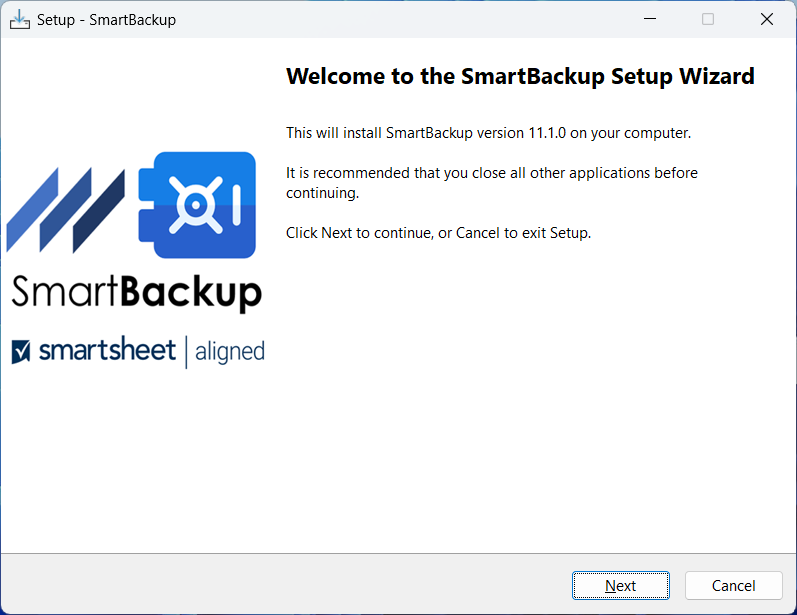
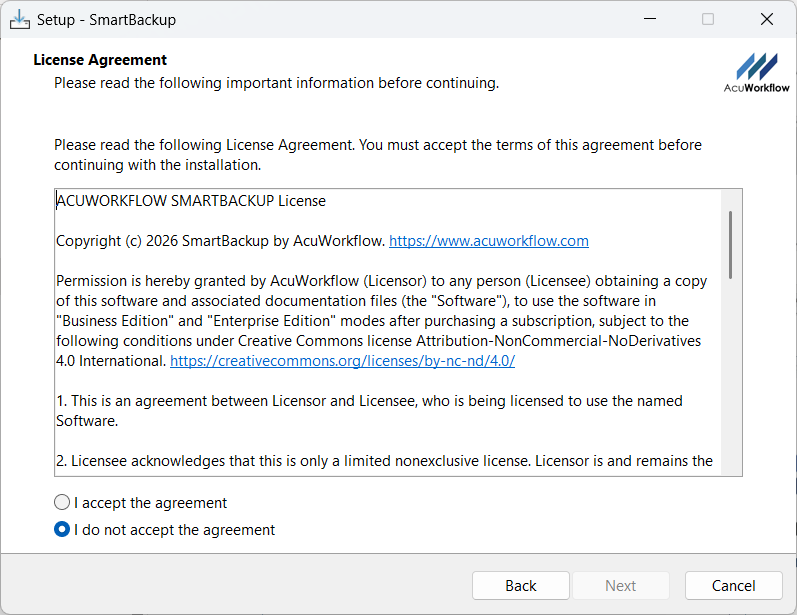
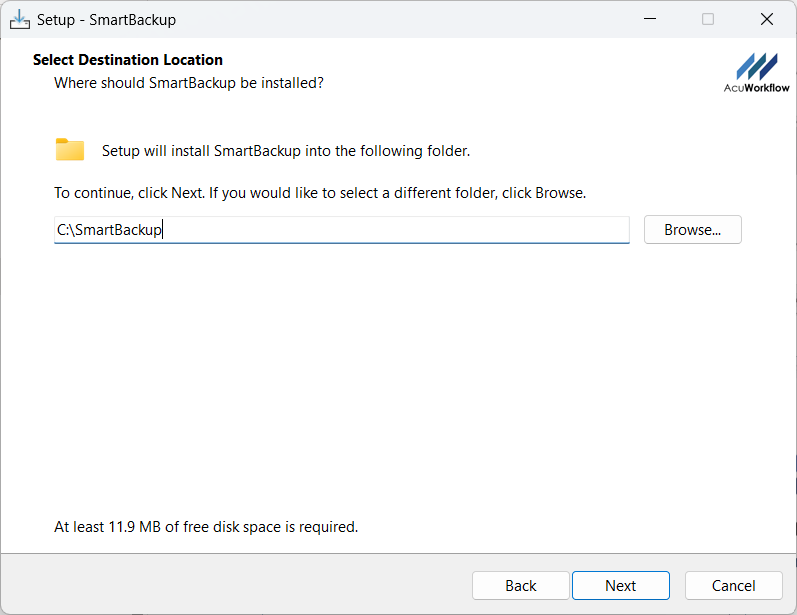
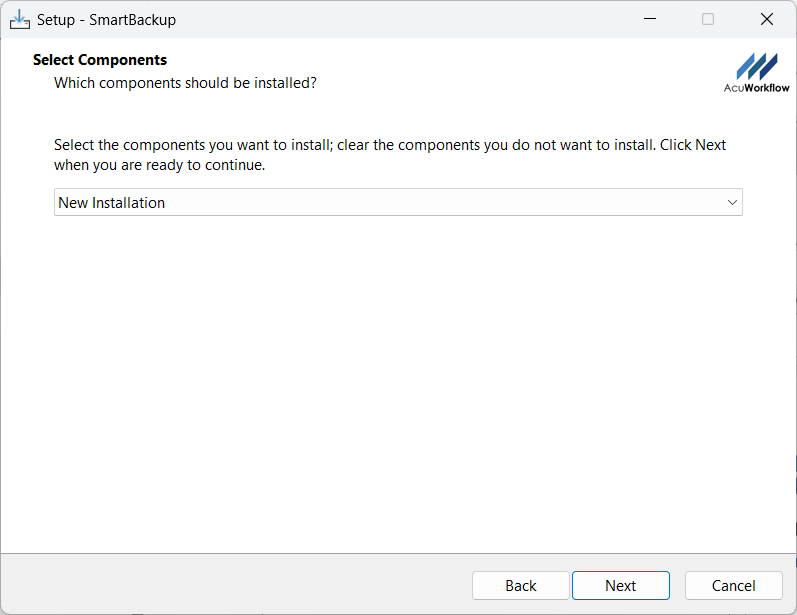
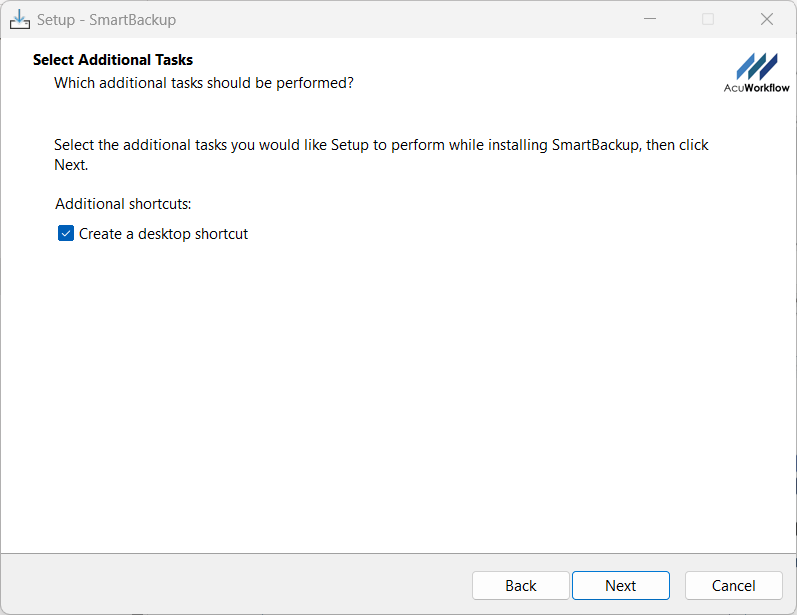
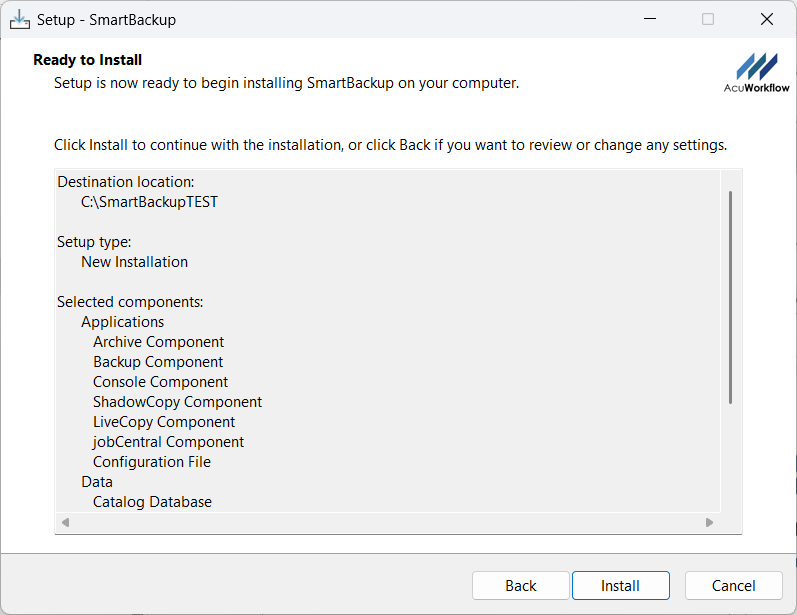
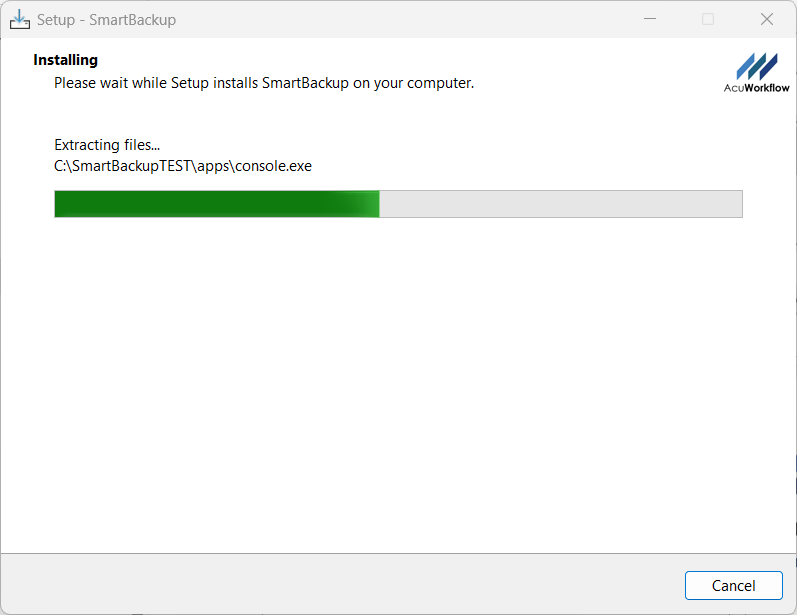
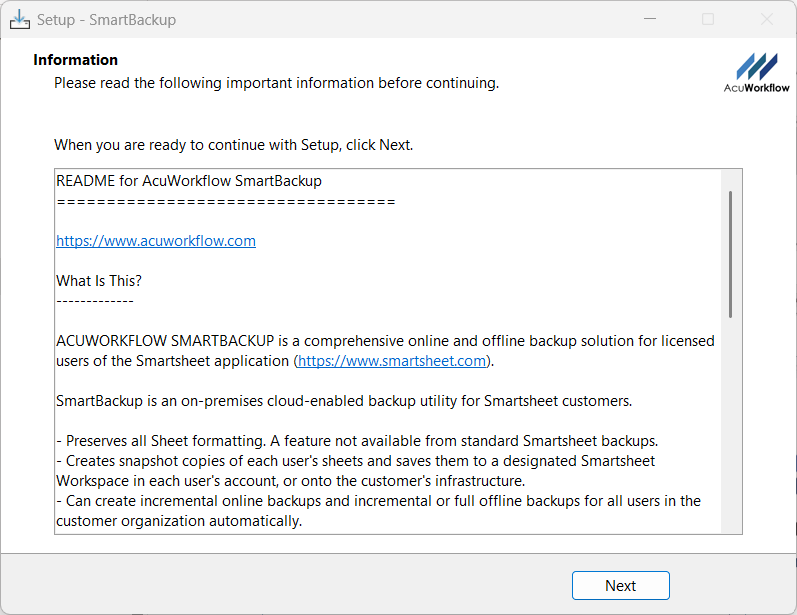
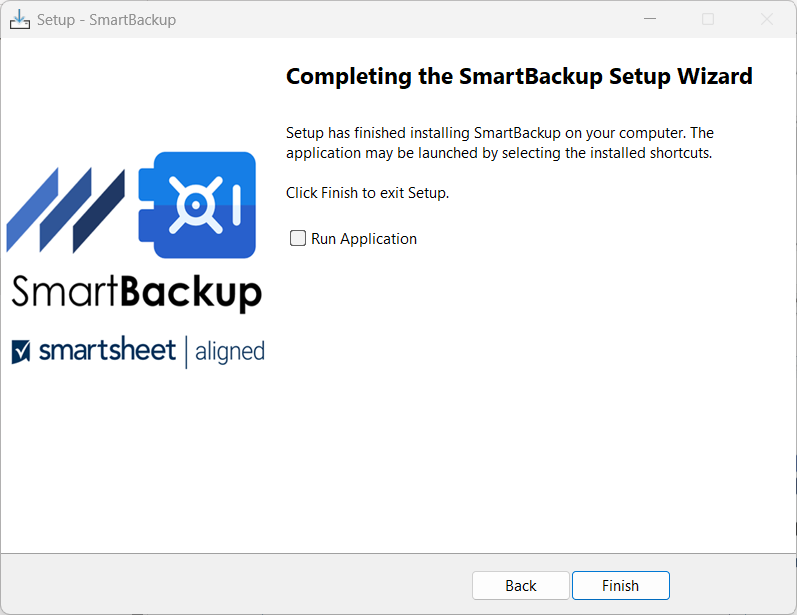
Follow the wizard steps.
Considerations
- File location of Installation
- New or Upgrade Installation
- Hosting/Deployment
Flie Location of Installation
You can choose a file location of your choice for installing SmartBackup but usually we recommend the default, which is c:/smartbackup.
New or Upgrade Installation
When installing for the first time, or when you would like to do a complete reset of your SmartBackup implementation, you should select a NEW installation. SmartBackup Administrators upgrading to the next release or re-installing are advised to always perform an UPGRADE installation to preserve the existing configuration settings.
Hosting/Deployment
The single biggest consideration is whether you want to host SmartBackup on-premises or in the cloud. An on-premises installation is usually pretty straight-forward and for testing, the solution can be installed on a desktop computer. However, for production deployments we strongly recommend installing SmartBackup on a secure IT-managed server or virtual machine.
For cloud platform deployments, SmartBackup is typically installed on a dedicated virtual server instance on Microsoft Azure or AWS.