
Reference GuideLast updated: 2026-07-30
This section is intended to be used as a general reference and specification reference. If you are new to SmartBackup, you will need to review the full documentation.
Editions
Since its first release, SmartBackup has been positioned as one of the leading backup solutions for Smartsheet.
SmartBackup is offered in two Editions, to accommodate the unique feature and price requirements of teams and organizations.
- Free 30-Day Trial of the full Enterprise Edition is available for organizations to experience the solution in their own live environments to determine if it meets your needs. Visit the Pricing section on the website to request a free trial.
- Business Edition delivers fully featured backup capabilities for small teams and is limited to a maximum of 5 enabled users.
- Enterprise Edition is ideal for company-wide deployments, with centralized control, large scale requirements, and enterprise flexibility.
Business Edition
You can purchase this directly from the AcuWorkflow web site. This version is packed with features and should cater for most of the situations you encounter as a small team of up to 5 Users.
Enterprise Edition
Please contact AcuWorkflow by submitting this SmartBackup Enterprise Query form for more info
SmartBackup Platform
The SmartBackup Platform primarily consists of the following components, which can be run independently or in concert with each other.
LiveCopy Function
LiveCopy is used to create "online" backup copies of Sheets and Dashboards that meet the specified job criteria. LiveCopy makes the richest-format copies possible and saves those copies in a special Workspace, called the "Vault" in each user's Smartsheet account.
LiveCopy also includes an automated "vault clean-up" utility, which runs automatically in the background and removes older backup copies from the vault, so that the Vault does not get filled up with redundant, older copies. The number of copies in the Vault can be configured by the SmartBackup Admin.
ShadowCopy Function
ShadowCopy is used to create "offline" backup copies of Sheets and Reports that meet the specified job criteria and saves them to the designated drive outside of Smartsheet. It is ideal for creating snapshot copies of your Smartsheet data, or to create external, offline, copies of the data for restoring, auditing, eDiscovery, disaster recovery planning, or business continuity purposes.
Note that the location of the ShadowCopy saved files can be defined in the SmartBackup Settings section of the Console. This can be a local drive, or it can be a UNC mapped drive.
Refresh Members Function
The purpose of the new Refresh Members function is to refresh the contents of the Member list in SmartBackup. Because it is now a free-standing application, it can be invoked manually or automatically and independently from the SmartBackup Console. This means that it can be run from a command line, or via RunBook batch files, or via Windows Task Scheduler.
When Refresh Members runs, it will fetch the latest list of Smartsheet users, and it will also check to see if a backup vault exists for each user. If a vault does not exist, it will try to create a vault for that user.
Note that depending on the customer’s IT environment, the results may be inconclusive, if for example, a new user is defined in Smartsheet, but the user has not yet logged in to Smartsheet. For this reason, it is best to test the Refresh Members function in your environment before adding it to your production schedule.
To run the Refresh Members function, simply call the function by name, with no additional parameters. For example: refreshmembers.exe
DRP Reporting Function
This new function has been added to the SmartBackup suite to assist SmartBackup administrators with overall DRP and BCP planning. It is designed to save key organizational information in a snapshot format and certain intervals.
This information includes data like a list of Users, list of Groups, etc. at a specific point in time.
When combined with SmartBackup Backup copies and ShadowCopy copies saved outside of Smartsheet, this DRP Report data will prove to be an invaluable resource for restoring data and services, and for auditing purposes.
The output from the DRP Reporting function will be stored in a subfolder of the path defined in the Export settings. For example:
In future releases these DRP Reports will contain more fields including a list of Workspaces, etc.
To run the DRP Reporting function, simply call the function by name, with no additional parameters. For example: drpreporting.exe
Housekeeping Services
The new Housekeeping services function allows some tasks to be scheduled internally and is aimed at simplifying the management of SmartBackup operations. While the initial pre-defined scheduling choices are fairly limited, customers can still schedule all functions to run using RunBooks and Windows Task Scheduler.
Housekeeping Services offers basic scheduling of some housekeeping tasks such as Member Refresh, ShadowCopy and DRP Reporting. It uses common-sense intervals and scheduling instructions for simpler operations.
Scheduling is persistent, so if SmartBackup is running, it will remember the scheduled tasks across re-boots. A message will be displayed in the server windows if scheduled tasks were missed due to the SmartBackup Console not being active.
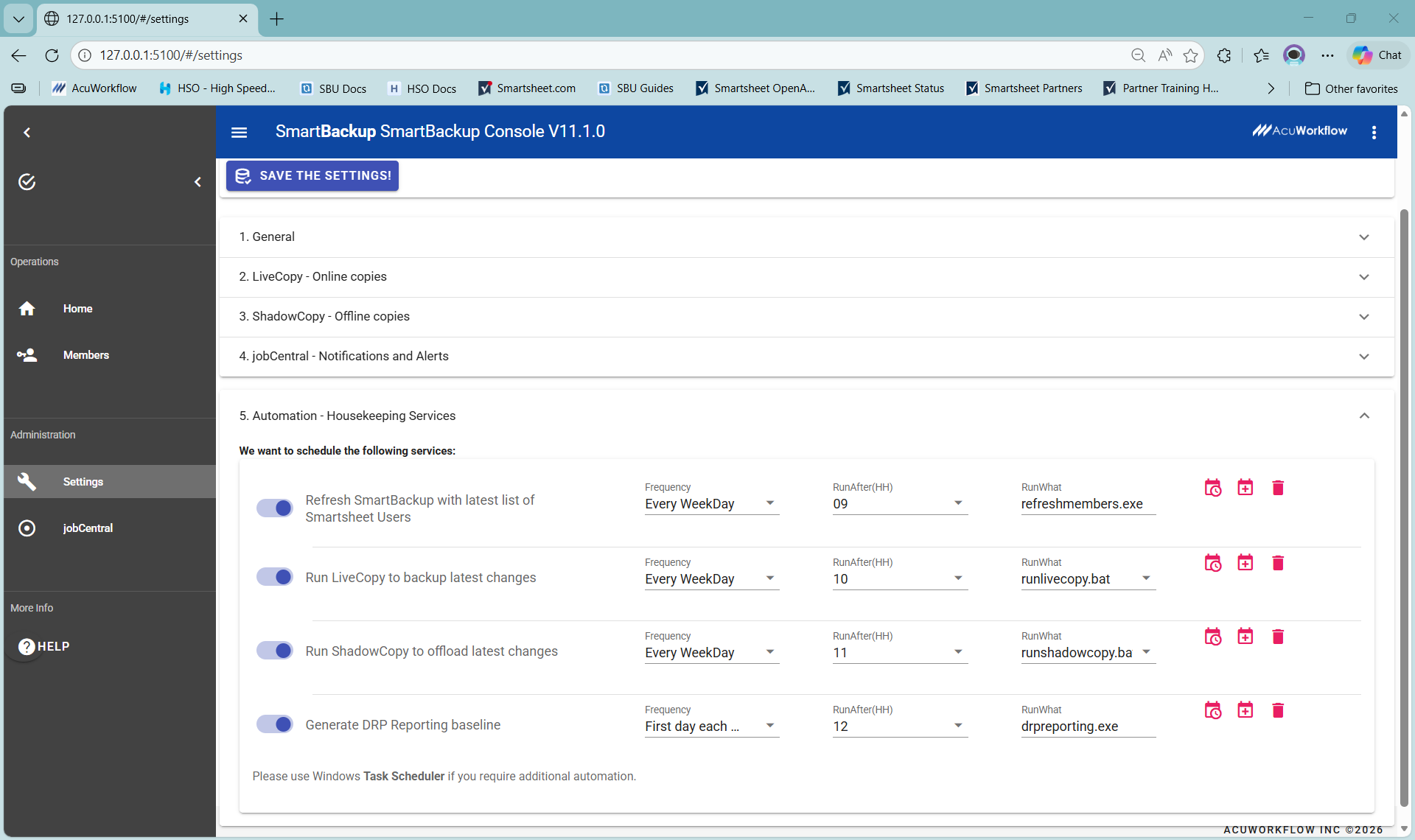
The three buttons on the right can be used to a) see the next run time, b) schedule a new task or c) delete a task.
The Default settings are defined in the config.yml file as part of setup installation and all schedules will be disabled by default.
The three switches on the left can be used to pause/resume a future scheduled task.
There is an additional “Hourly housekeeping task” that runs automatically to help prevent session timeouts the SmartBackup Console. This hourly task invokes a simple batch file that can optionally be edited to include other relevant housekeeping tasks in the future.
Note: To list all the running services at any time when the SmartBackup Console is running, is to open a new browser window and go to http://localhost:5000/api/v1/services. This will show a list of currently scheduled tasks.
Summary of Features by Edition
Table with latest stable release features for each edition are shown below. Terms and conditions apply. Use Limits and Restrictions:
| Capability | Business Edition | Enterprise Edition | |
|---|---|---|---|
| # of Lic Users | 2-5 | Varies | |
| Instances | Single | Single or Multiple | |
| Access to Smartsheet data | sysAdmin Token | sysAdmin Token | |
| User Provisioning | Manual & Automatic | Automatic | |
| Backup Vault Provisioning | Automatic | Automatic | |
| User defined queues for all Functions | Yes | Yes | |
| LiveCopy | |||
| Type of | Incremental | Incremental | |
| Included | Sheets, Attachments, Dashboards | Sheets, Attachments, Dashboards | |
| # of Sheets | 250 each | Unlimited | |
| # of Attachments per sheet | 10 per sheet | Unlimited, Admin can set soft limits | |
| # of Dashboards per User | 100 (most recent) | Unlimited | |
| Backup Copy | exact copy | exact copy | |
| ShadowCopy | |||
| Type of | Incremental | Incremental | |
| Included | Sheets, Attachments, Reports + metadata | Sheets, Attachments, Reports + metadata | |
| Offline backup copy | Native files, zip files + metadata | Native files, zip files + metadata | |
LiveCopy
What can be backed up to the Vault?
- Sheets
- Dashboards
- Folders (Reports) [in a future release]
Due to Smartsheet API limitations, the online backup of all Smartsheet objects and features in a consistent way is not possible.
Sheets and Dashboards are handled in the same way and can be backed up incrementally. Reports are not 'copy-able' nor do they contain a last-changed date and therefore can only be backed up via a folder arrangement. In this way Reports or anything else included in designated folders can be earmarked for backup. This is done using the SmartBackup "Specific" function [future release].
Which sheets are backed up to the Vault?
SmartBackup will automatically determine which Sheets or Dashboards to backup in incremental mode. Incremental mode is based on the last modification date for every sheet or dashboard each user owns. By default, a LiveCopy run will include all sheets and dashboards modified in the last 5 days. This incremental period can be adjusted based on your needs. Refer to the Administrator Guide for details.
How many sheets will be backed up during a LiveCopy run?
The scope of sheets and dashboards changed within the 5 day period (or other period chosen) will determine the actual number of sheets backed-up.
| Consideration | Business Edition | Enterprise Edition |
|---|---|---|
| Scope | All Owned Sheets and dashboards will be considered for each User | All Owned Sheets and dashboards will be considered for each User in the Account |
| LiveCopy | Will create online backup copies of all sheets and dashboards meeting the set criteria for each User | Will create online backup copies of all sheets and dashboards meeting the set criteria for each User in the Account |
zz2.Campaign Plan”, and then it will no longer be included in future backups.
What is included for every LiveCopy backed-up sheet?
All sheets backed up will be an exact copy of the original including the following:
| Feature | Business Edition | Enterprise Edition |
|---|---|---|
| Data | ✔️ | ✔️ |
| Formulas | ✔️ | ✔️ |
| Formatting | ✔️ | ✔️ |
| Attachments | ✔️ | ✔️ |
| Cell-Links** | 🔲 | 🔲 |
| Discussion / Comments | ✔️ | ✔️ |
| Shared Filters | ✔️ | ✔️ |
| Forms | ✔️ | ✔️ |
| Automation Rules | n/a | n/a |
| Shares | ✔️ | ✔️ |
What format is the LiveCopy online backup sheet?
The online backup sheet and dashboard is the same format as the original Sheet and dashboard, and it is saved in the User's Smartsheet environment.
For every LiveCopy run, all the sheets and dashboards meeting the backup criteria for a particular User will be saved within that User's "Vault" workspace, and in the current "Month" folder.
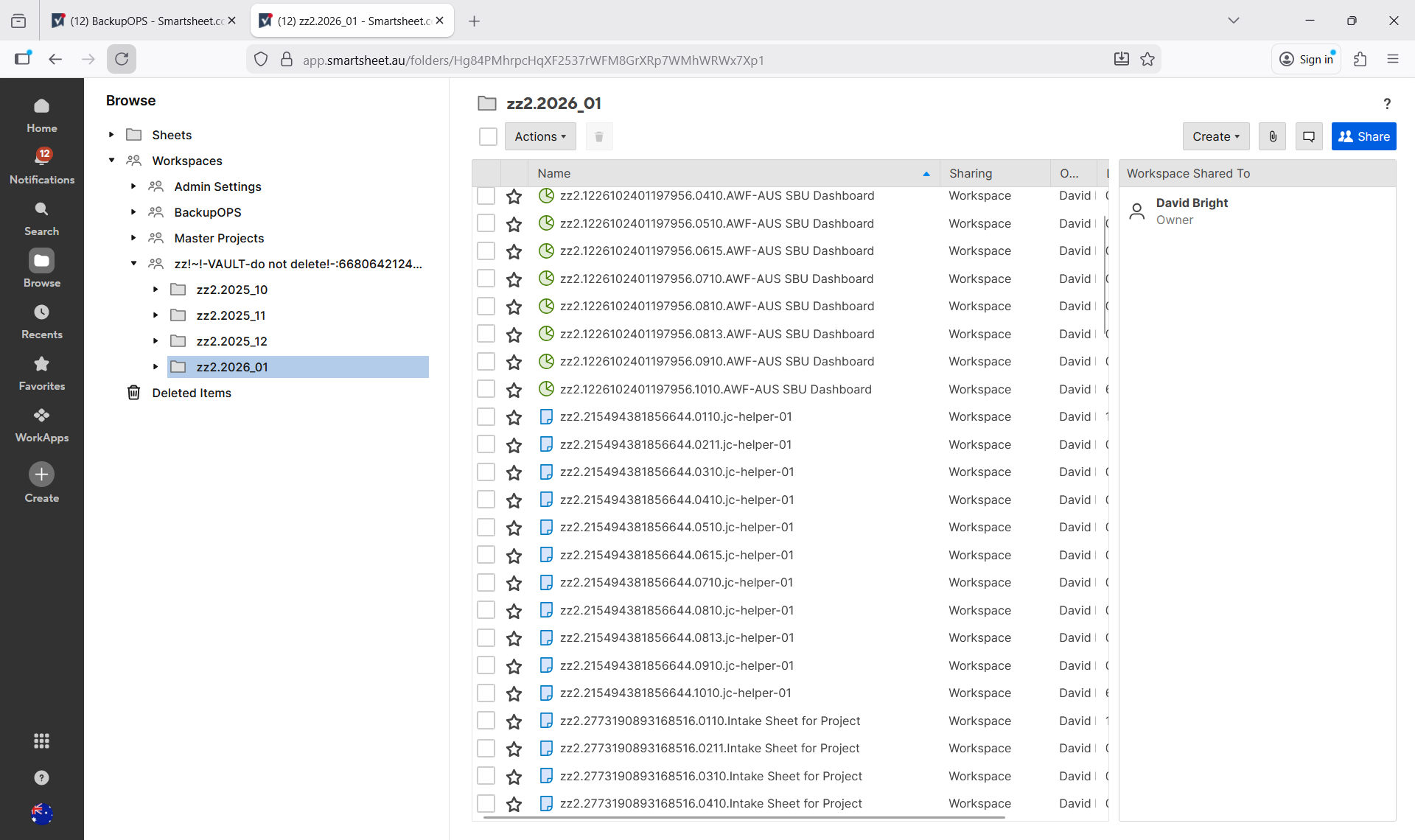
Note that the copies in the vault workspace are the "richest" possible copies available with Smartsheet. They are basically exact copies of the original Sheets and Dashboards, but with a different name and a different ID number.
Online backup copies of Sheets and Dashboards stored in the Vault are automatically renamed with the prefix zz2. followed by the original item name. This naming convention makes it easy to recognize backup copies, improves searchability within Smartsheet, and ensures SmartBackup can reliably distinguish backups from live items—preventing it from generating backups of existing backup copies.
Beginning with SmartBackup Release R11, LiveCopy enhances this naming format by inserting the original SheetID immediately after the zz2. prefix. This is followed by a 4‑digit day/time stamp, which helps users identify the most recent version when multiple backups exist within the same month folder. After the timestamp, the original Sheet name is appended and truncated as needed to comply with Smartsheet’s 50‑character name limit. For example, a backup copy of the sheet called "Formula test" would look like this: zz2.7475134870980484.2411.Formula test
To locate the most recent online backup of a sheet, the most reliable method is to obtain the SheetID of the source sheet and search for that ID directly in Smartsheet. Alternatively, you can browse the latest month folder in the Vault: all backup copies are listed alphabetically and chronologically based on their SheetID and day/time stamp, making it straightforward to identify the newest version.
Optional Parameters
The following optional parameters can be supplied when you invoke LiveCopy.
These optional parameters may be combined together.
For example: livecopy.exe -d=14 -s -b will find all sheets and dashboards that have changed in the last 14 days and will create backup copies of those sheets and dashboards and save them to the User's vault workspace.
| Option | Description | Example |
|---|---|---|
| -d DAYS or --days DAYS | Create online backup copies of all Sheets or Dashboards that the user is the owner of and that have changed within the last days period. Note that the maximum number of days is 365. |
livecopy.exe -d=14 -s -b |
| -s, --sheets | Create online backup copies of all Sheets that the user is the owner of and that have changed within the last days period. |
livecopy.exe -d=14 -s |
| -b, --dashboards | Create online backup copies of all Dashboards that the user is the owner of and that have changed within the last days period. |
livecopy.exe -d=14 -b |
| -q WHATQUEUE or --queue WHATQUEUE | Queue name. When supplied only members with specified queue name will be processed. | livecopy.exe -d=14 -s -q=FinDept |
| -m LIMIT, --limit LIMIT | Optional parameter to specify a maximum limit on the number of Attachments that will be processed per Sheet. | livecopy.exe -d=14 -s -m=250 |
| -n NAME, --name NAME | Optional parameter to provide the job with a specific JobName for logging and tracking purposes. | livecopy.exe -d=14 -s -n=FinDept |
| -l LOG or --log LOG | Optionally set logging level = debug, info, warning. Debug provides the most information, info provides less information, and warning only includes specific warning information. This information is visible in the "Console Server" window when the SmartBackup Console is running, or in the log file. | livecopy.exe -d=14 -s -l=warning |
| -h, --help | Show the help message and function options list. | livecopy.exe -h |
livecopy_logx.log will be created in the ..\data directory with timestamped entries. If you encounter an error, you can review this log file for error details. In addition, as described in the JobCentral section, when using RunBooks and JobCentral the job log file will be saved to the jobstatus\data folder, and will be saved to the JobCentral sheet in Smartsheet together with a job status PDF summary.
Automated Vault Management Function
Included in the LiveCopy function is a new automated vault management function, which is designed to manage the number of online backup copies that are saved in each user's vault workspace at any time. This will ensure that the vault workspace does not get too big, and it makes it easier for the user to locate recently created backup copies.
In addition to this new automated management function, the format of the vault folders has evolved to improve performance and searchability. All online backup copies are saved in a flat file format in a folder based on the current month. The SmartBackup Admin can configure the settings to determine the number of monthly folders will be present at any time, from 1 month to 12 months, as can be seen in the following example.
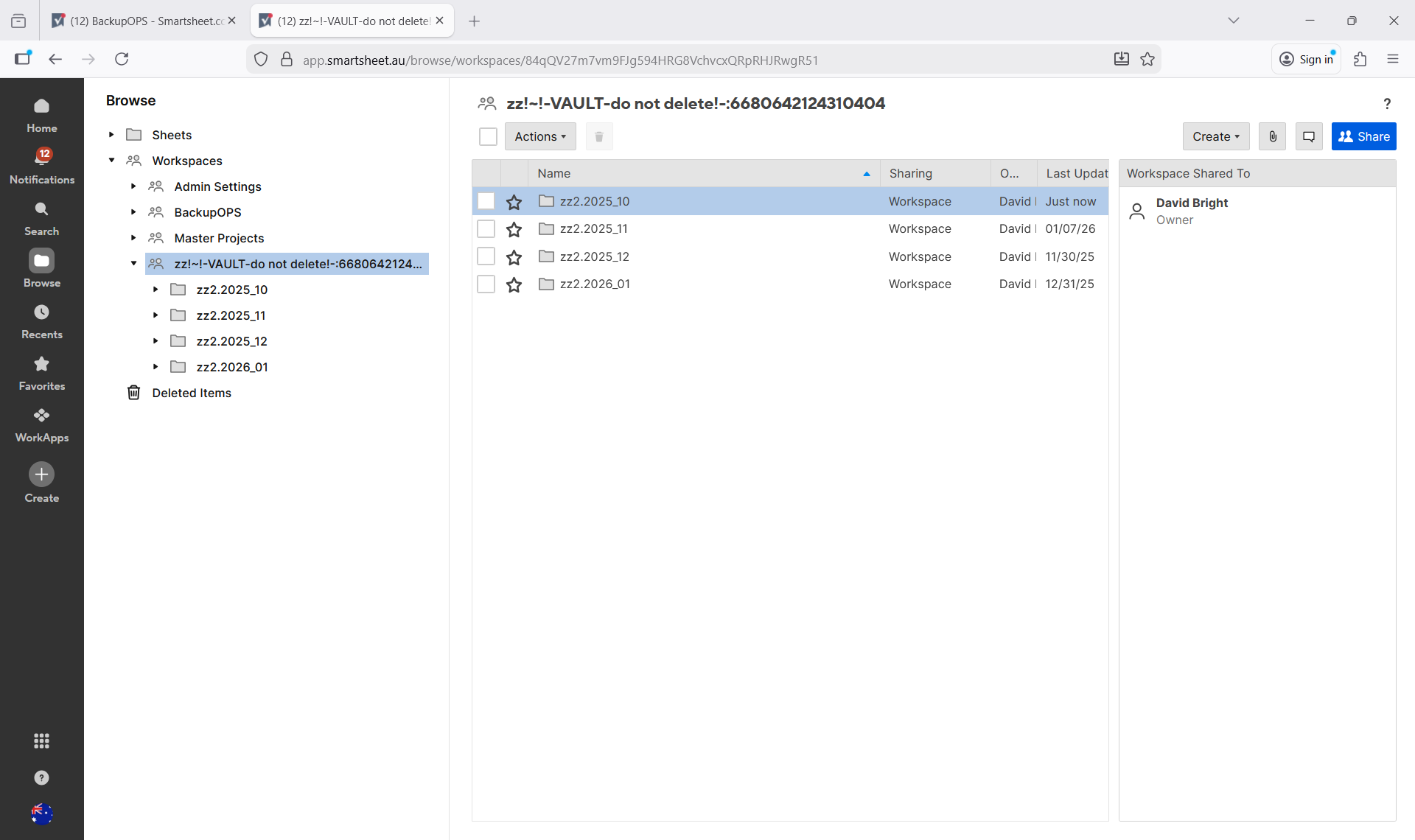
Then when LiveCopy runs, it saves the new online backup copies of Sheets and Dashboards within the current "month" folder. These copies are saved as a "flat" list, which makes it easy for the user to immediately identify which copy was created each time LiveCopy ran.
To configure the number of "month" folders available in each user's vault, the SmartBackup Admin will need to edit the config.yml file located in the c:\smartbackup\apps directory.
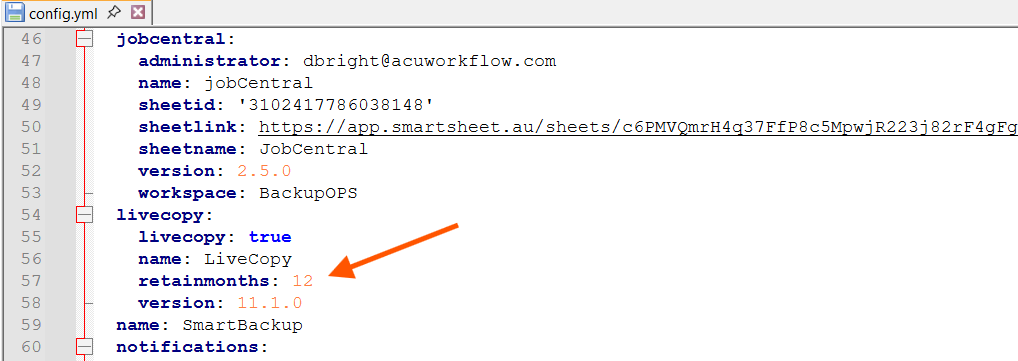
When editing the config.yml file, be sure to use an appropriate editing tool such as notepad.exe or Notepad++ to ensure that the yaml format is retained.
To edit the number of months, open the config.yml file and scroll to the section called "livecopy:", then locate the parameter called "retainmonths:" and edit this value. Note that the value should be between 1 and 12 months.
Then click save and SmartBackup will use that value going forward.
When LiveCopy runs, it will scan the vault workspace and if it identifies folders that fall outside of the retainmonths value, those folders and all contents will be deleted from the vault.
ShadowCopy
ShadowCopy refers to the copying of a Smartsheet asset (sheet, report or attachment) from Smartsheet to a designated local drive. It is ideal for creating offline backup copies and regular copies of your data for history, DRP, BCP, auditing, and governance purposes.
The major differences between LiveCopy and ShadowCopy are that LiveCopy duplicates the Sheet within Smartsheet whereas ShadowCopy makes a copy of the Sheet and saves it to an external file store outside of Smartsheet. Therefore, the first is an exact copy preserving all information, whereas the latter may lose some Smartsheet-specific details.
| Feature | ShadowCopy |
|---|---|
| Type of offline backup | Only operates in Incremental mode. |
| Sheet, Report and Attachment Names | Names are not used, instead files are named using the corresponding Smartsheet ID numbers. This avoids any issues with duplicate file names and non-western character sets. An index manifest is also exported, to assist with locating sheets. |
| File types | Sheets, attachments, Reports, and packing notes are saved as file mime-type. An attachment manifest provides attachment to sheet mapping. |
| Logging | Optionally set logging level = debug, info, warning. Debug provides the most information, info provides less information, and warning only includes specific warning information. |
| File Save Location | Uses the location as defined in the ShadowCopy settings. |
ShadowCopy Runtime Considerations:
| Business Requirement | Frequency | Interval | Runtime Parameter |
|---|---|---|---|
| Very High-Risk, very volatile environment | Intra Day |
Every 4 hrs Every 6 hrs Every 8 hrs |
n/a |
| High-risk, volatile environment | Daily | Every 24 hrs | n/a |
| Moderate risk, stable environment | Weekly (Recommended) | Every 5-7 days | -d=5 |
| Low risk, very stable environment | Monthly | Every 20-30 days | -d=14 |
ShadowCopy Runtime Parameters
| Option | Description | Example |
|---|---|---|
| -d DAYS or --days DAYS | ShadowCopy asset scope. Specify to copy only those sheets that have changed in the last "d" number of days. However, -d cannot be used alone. It must be used in conjunction with either -s, -a, or both. | shadowcopy.exe -d=5 -s |
| -s or --sheets | Process Sheets and Reports. It must be specified in order to create offline copies of sheets and reports that meet the criteria. | shadowcopy.exe -d=5 -s |
| -a or --attachments | Process Attachments. It must be specified in order to create offline copies of attachments that meet the criteria. | shadowcopy.exe -d=5 -a |
| -m LIMIT, --limit LIMIT | Optional parameter to specify a maximum limit on the number of Attachments that will be processed per Sheet. | shadowcopy.exe -d=14 -a -m=250 |
| -n NAME or --name NAME | Give the Job a name. However, -n cannot be used alone. It must be used in conjunction with either -s, -a, or both. | shadowcopy.exe -d=14 -s -n=Thor |
| -q=WHATQUEUE or –queue=WHATQUEUE | Queue name. When supplied only members with the same queue name can be processed separately and/or in parallel. However, -q cannot be used alone. It must be used in conjunction with either -s, -a, or both. | shadowcopy.exe -d-14 -s -q=FinDept |
| -l LOG or --log LOG | Optionally set logging level = debug, info, warning. Debug provides the most information, info provides less information, and warning only includes specific warning information. This information is visible in the "Console Server" window when the SmartBackup Console is running, or in the log file. | shadowcopy.exe -d=14 -s -l=warning |
| -h, --help | Show the help message and function options list. | shadowcopy.exe -h |
What is included in every ShadowCopy exported Sheet and Report?
All sheets and reports exported via ShadowCopy are different to the original format in Smartsheet. This is mainly due to the fact that each sheet and report is re-instantiated outside the Smartsheet environment as an Excel file. Therefore some Smartsheet features cannot be exported, in part due to Excel incompatibilities and the functionality available in the Smartsheet API.
Note that these ShadowCopy exported copies are more comprehensive than the regular Smartsheet export copies, and because of the unique "metadata" files that accompany each exported copy, this offers the richest possible externally saved backup copies available on the market today.
| Feature | Business | Enterprise |
|---|---|---|
| Data | ✔ | ✔ |
| Formulas | 🔲 | 🔲 |
| Formatting | 🔲 | 🔲 |
| Attachments | ✔ | ✔ |
| Cell links | 🔲 | 🔲 |
| Comments | ✔ | ✔ |
| Shared Filters | n/a | n/a |
| Forms | n/a | n/a |
| Automation rules | n/a | n/a |
| Shares | n/a | n/a |
What format is the ShadowCopy exported Sheets and Reports?
Note that the formats of the files that are saved by ShadowCopy are designed to improve overall throughput and to make it easier to locate files when needed.
In the case of ShadowCopy, all exported Sheets, Attachments and Reports, together with their associated metadata files are saved together in a single "flat" folder. These are accompanied by several "manifest" files. These manifest files provide additional information such as the Sheet and Report names, Attachment names, associated Workspace names, etc. to enable asset mapping.
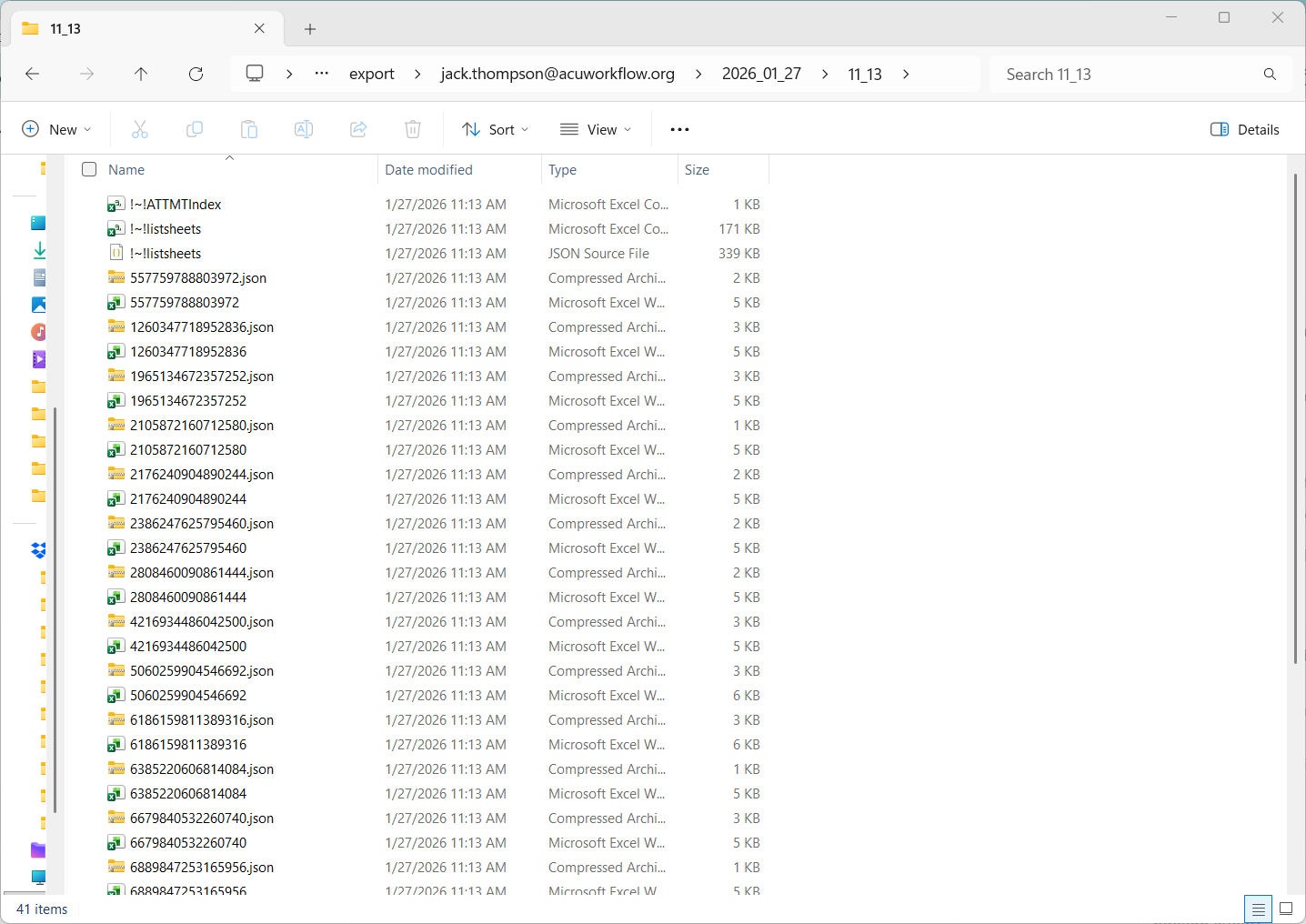
Let's take a look at each of these files:
Sheet and Report Manifest files
At the top of each ShadowCopy output folder you will find the manifest files, which have a naming convention beginning with "!~!". In the example above there is are two manifest files named !~!listsheets, because the ShadowCopy run was configured to save only Sheets and Reports. One file is saved in CVS format and the other is in saved .json format. Both files contain the same information. These contain lists of the Sheets and Reports that were exported, together with important metadata such as the source Sheet or report name, Sheet ID, Accesslevel, Permalink, Created date, and Modified date.
If the ShadowCopy run was configured to also export Attachments, then the folder would contain an additional manifest file called !~!ATTMIndex. That metadata file will contain attachment related data such as Attachment Name, Attachment ID, Sheet ID, Type, Parent Type, Username, etc. This information can be used to figure out the Attachment-to-Sheet mapping and how the attachment was attached to the Sheet.
Note that the naming convention for attachments is "[Sheet ID] - [Attachment ID]", which allows sorting of the folder to group all attachments together with the associated sheet.
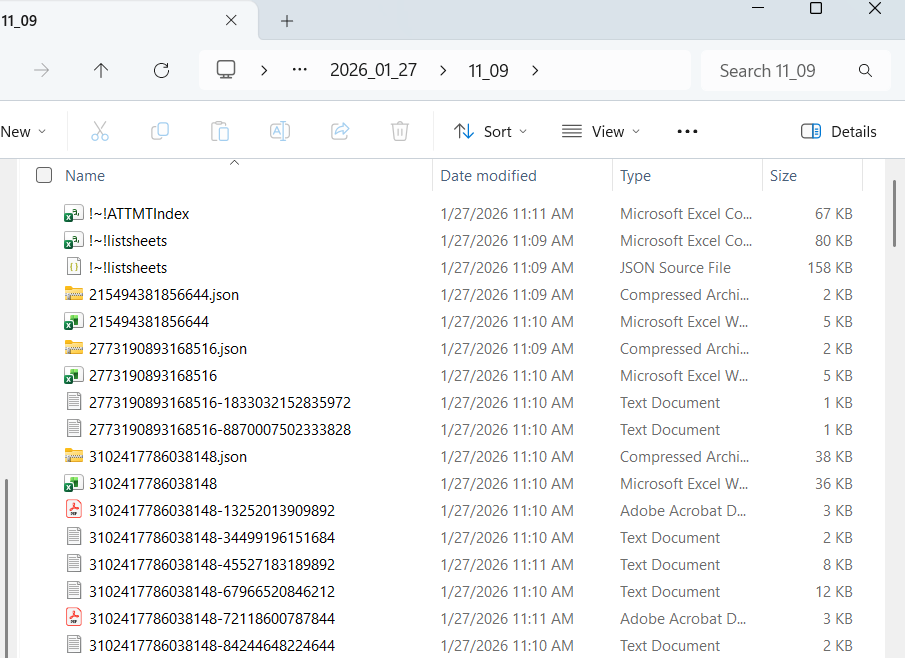
This metadata can be used to locate Sheets and Attachments, and then to help with restoring Sheets, Attachments, and Sheet data when needed. Note that SmartBackup is the only backup solution on the market today that saves this type of metadata.
Sheet and Report files
Next, in the examples above you will notice that there are two files for each Sheet or Report that was exported. One file is in CSV format and contains the Sheet or Report data in a similar format to what can be exported directly from Smartsheet, and the second file contains all the available metadata for that Sheet or Report.
Note as well, that instead of using the Sheet or Report name as the filename in the folder, ShadowCopy uses the unique Sheet ID of the source sheet or Report. The reasons for doing this are to avoid duplicate file name issues when saving files to disk, and to make it easier to find a Sheet or Report by using it's original Sheet ID rather than the name, because Smartsheet allows duplicate sheet names. Another reason for using the Sheet ID is to avoid trying to save files with names that use "non-western" character sets - which also cause issues when trying to save to disk.
Attachment files
As with the sheets and to circumvent the same issues, Attachments are saved using the unique Sheet ID combined with the unique Attachment ID, and the attachment files are saved in their native format, such as PowerPoint, Word, JPG, PDF, etc.
Where are the ShadowCopy exported files located?
All ShadowCopy exports will reside under the same path name specified in ShadowCopy Settings Path and every ShadowCopy run will create a hierarchical folder structure starting with Username then YYYY _MM_DD then a timestamp value of HH_MM.
Single Host, Multi-node Operation
From SmartBackup R11 onwards, it is now possible to run multiple instances of SmartBackup on a single computer, or Windows instance.
This type of deployment may be useful for testing, or for dividing SmartBackup workloads across departments in a large organization, or for segmenting workloads based on specific criteria.
Note that this should be considered an advanced and an optional feature of SmartBackup, and it will require a bit more configuration on the part of the SmartBackup Admin team.
To enable this feature, you would first install the first instance, and follow the standard installation process, using the default installation path, which is typically: C:\SmartBackup.
Then, for the second, or subsequent nodes, follow the standard installation process, but choose or create a new installation folder, which could be something like the following: C:\SmartBackupAUS.
Next, navigate to the second installation folder, and to the ..\apps subfolder, which will be something like this: C:\SmartBackupAUS\apps.
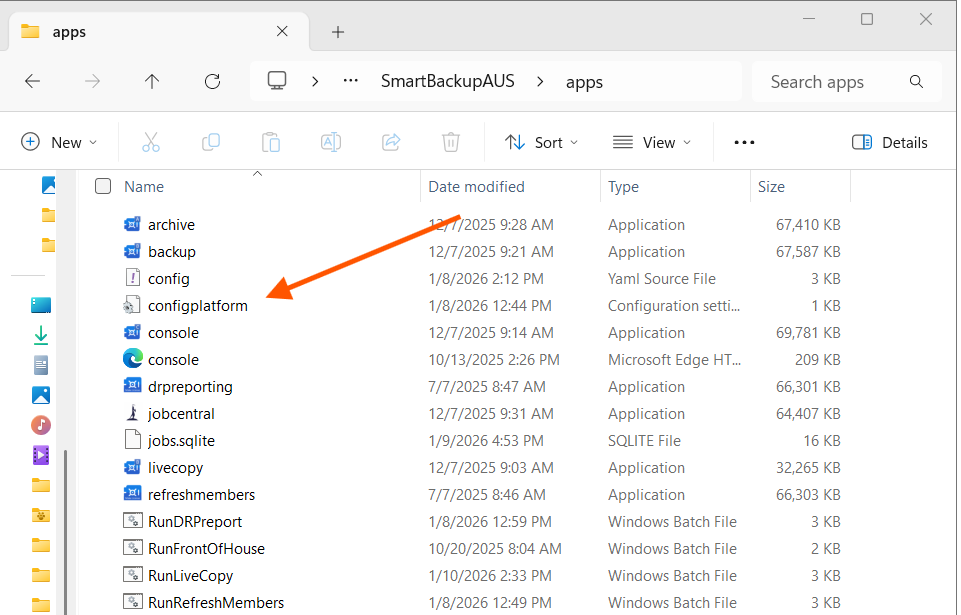
Now, locate the file called configplatform.ini, and open to edit using a tool like Notepad, or Notepad++.
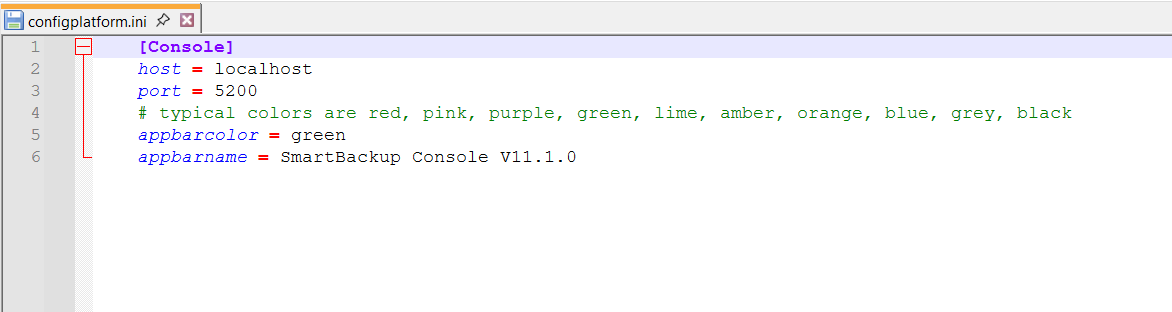
Now change the "port=" parameter to make it different to the default value, which is typically 5100. In this example, we have changed the port value to 5200.
Then you can optionally change the color of the top bar in the SmartBackup Console window to make it easier to identify which SmartBackup instance you are working with, by editing the appbarcolor= parameter.
As a further way to identify each instance, you can customize the "appbarname:" parameter as well. For example, this could be "Finance Department", or anything you need it to be.
Once done editing, click save to save your changes.
Now you can launch and run either or both instances on the same Windows instance, both by launching SmartBackup Console, and also via a set of RunBooks for each instance.